
User profiles and roles
Managing members in Otilus
This section is intended for managers and administrators. You will learn how to add users, define their permissions, and organize your team efficiently in Otilus.
Understanding licenses
Every Otilus subscription includes a number of licenses. One license corresponds to one active user, whether they are a member, manager, or administrator.
You can adjust this number at any time as your team evolves.
Example: with 3 licenses, you can have 1 manager and 2 members, or 3 managers. The distribution is entirely flexible.
Accessing user management
Open the Manager area, then click Users in the side menu.
There you will find:
- the list of users
- their role
- their last login
When you sign up for Otilus, you are automatically a manager. A team must always have at least one manager.
Adding or editing a user
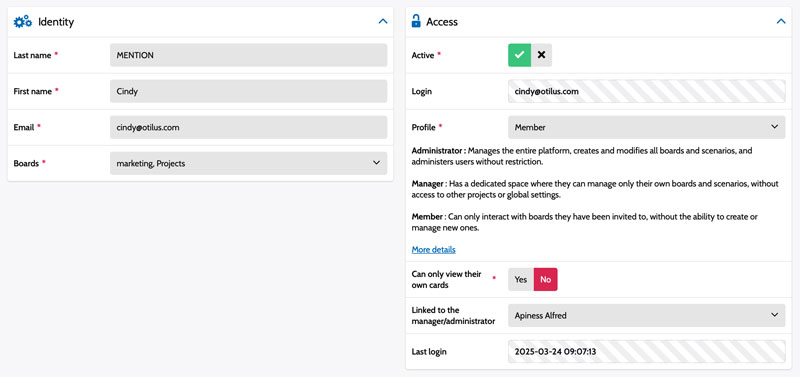
Click Add member or the edit icon to modify an existing user.
Fill in:
- Last name
- First name
- Email used as the login identifier
If this email already exists in Otilus, a number will automatically be added to avoid duplicates.
Defining access to boards
Select the boards the user can access. You may check one, several, or all boards.
Managers automatically have access to all boards they are responsible for.
You can also temporarily set a user as inactive without deleting them.
Sending login details
When creating a user, you can choose to send their login details automatically by email.
If enabled, the user receives:
- their username
- a temporary password they can change later
If disabled, you can send the login details later or reset the password at any time.
Choosing the user’s role
Every user must have a role: Administrator, Manager, or Member.
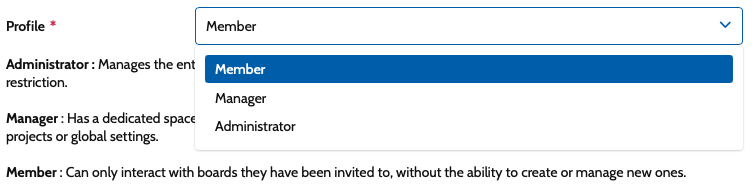
Administrator
The administrator has global control over the platform.
- Access to all boards and scenarios
- User and role management
- Global settings and subscriptions
- Access to full statistics
This role should be assigned carefully.
Manager
The manager oversees their own boards and scenarios, without access to global settings.
- Create and manage their boards
- Add members to their boards
- Track statistics within their scope
They cannot modify other managers’ boards unless assigned to them.
A manager automatically gains rights on the boards they create or that are assigned to them. They can also manage members attached to those boards, within the limits of available licenses.
Member
The member participates in projects but does not structure the tool.
- Access assigned boards
- Create and edit tasks
- Move cards
- Track project progress
They cannot create boards or modify their structure.
Save the settings: the user immediately joins your team.
Defining card visibility
You can choose what the user sees:
- No: they see all cards on the board. Recommended for smoother collaboration.
- Yes: they only see cards assigned to them.
Managing access security

At any time, you can:
- resend login details
- reset a password
- disable or delete a user
In case of a security incident, remember to reset the relevant passwords.
Conclusion
You now know how to organize your team, assign permissions, and secure access in Otilus. Proper role management ensures clear, smooth, and efficient collaboration.