
Card types
Let’s move on to a key step: managing card types. As a manager, this is where you visually structure your projects… and prepare them for future automation.
What is a card type?
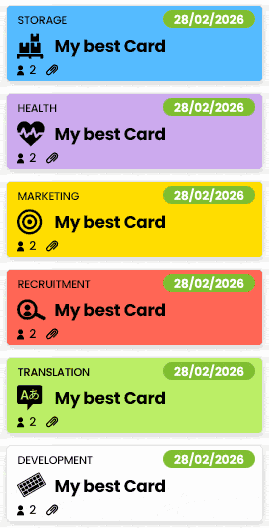
A card type allows you to visually differentiate your projects in Otilus using a color and optionally an icon.
But its role goes beyond appearance: card types also serve as a foundation for triggering automated scenarios, organizing your processes, and structuring your workflow.
In short: card types give visual and logical meaning to your projects.
Create a card type
Go to the Configuration area, then open the “Card types” menu.
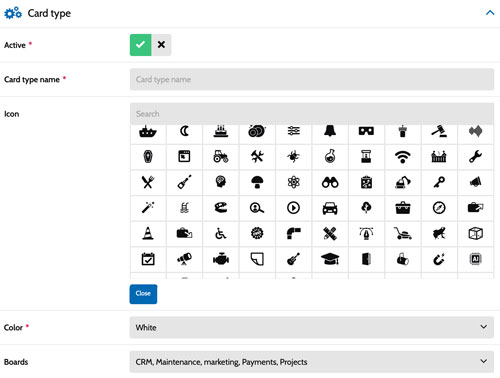
Click “Add a card type” to create your own.
You will need to:
- Enable or disable the card type.
- Give it a clear name (e.g. Quote, Incident, Client, Prospect…).
You can then choose an icon from more than 400 available options. This is optional, but very useful to identify your cards instantly.
However, the color is mandatory. It allows you to quickly recognize the nature of a project in your boards. If you don’t choose one, Otilus will assign a default color automatically.
Save and test
Click “Save and return to list”.
Your card type is now ready to use. You can immediately select it when creating a new card.
Link a card type to a board
A card type must always be allowed in at least one board.
By default, a new type is available in all boards. However, you can choose to restrict its use to specific boards only.
To do so:
- Go back to Configuration
- Open the Boards menu
- Edit the desired board
- Enable or disable the allowed card types
This helps prevent mistakes and ensures each board remains consistent with its purpose.
Check the result
Return to your boards and create a new card.
If the type appears in the list, everything is ready
Well done! You’ve just structured your organization and laid the foundations for future automation in Otilus.