
Card Creation
You now know how to visualize and move cards within their environment.
Let’s move on to the essentials: creating your first card.
Step 1 · Choose the Column
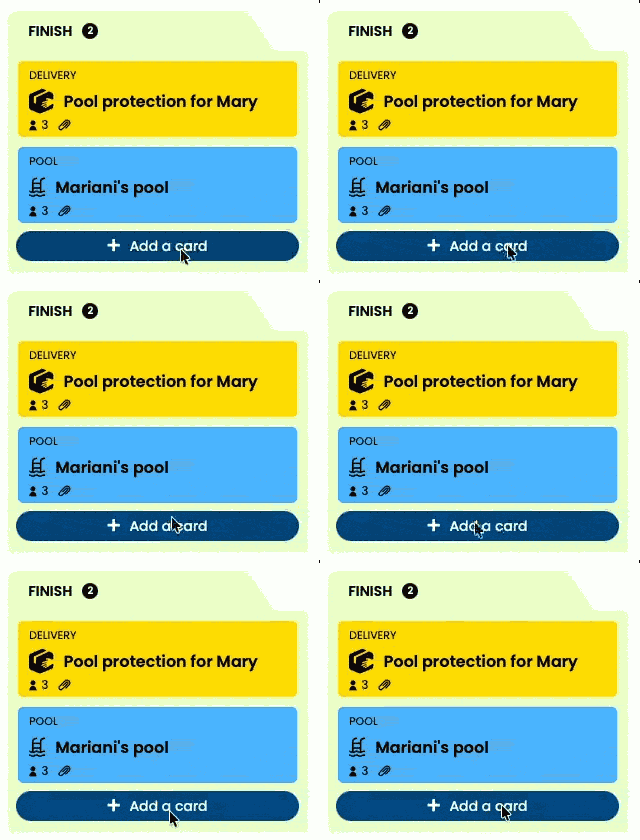
- Identify the column where you want to add a project, then click “Add a card”.
- A window opens with several fields to complete. To save time, Otilus automatically pre-fills certain fields, such as the card type (simple card by default) or the dedicated team when you are working alone.
Step 2 · Complete the Card
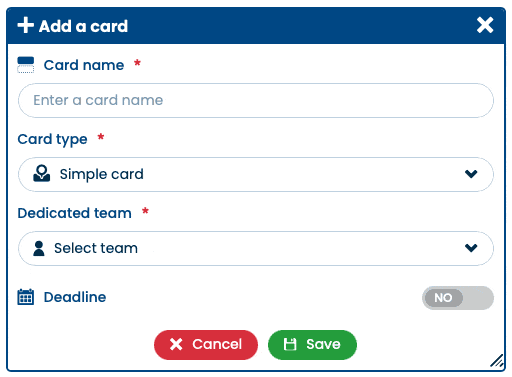
1 · Card Name
Give your card a clear and explicit name.
Take inspiration from the project, the client, or the goal to be achieved.
Example: “ACME & Co Project”.
2 · Card Type
Select the card type that matches your project. Card types are defined in advance by the Otilus manager and can be created or adjusted at any time.
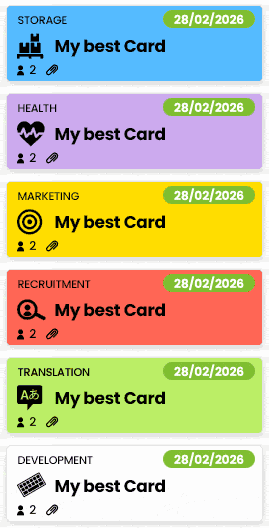
Each card type is associated with a color and an icon, making it easy to instantly identify the nature of the project on the board.
3 · Select the Team
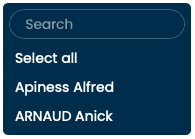
Assign the right collaborators to your card by clicking “Select team”. Simply check the relevant members.
Tip: use the search field to quickly find a collaborator when the list is long.
4 · Due Dates (optional)
Adding a due date is optional. This feature is detailed in a dedicated documentation on project phases and due dates. For this example, we will therefore leave this setting set to “No”.
Step 3 · Create the Card
Once all fields are completed, click “Save”. Your card immediately appears on the board, ready to be used.
With Otilus, creating cards is fast, clear, and intuitive. You structure your projects and keep a clear overview at every stage.