
Task management
Create, edit, and complete tasks
Tasks are created directly inside a card (that is, within a project).

Use the “Add a task” field, type the action to be completed, then click “+”. The task is instantly added to the active tab of the card.
This allows you to build step by step the list of actions required to complete the project.
View and edit a task
Viewing a long task
Some tasks may contain long text. To maintain readability, Otilus automatically shortens the display and adds “...”.
The full text is preserved. A simple click on the task displays it in full.

Editing a task
A task can be modified at any time within the card.
To do this, double-click its title or use the edit button. You can then correct, complete, or rephrase the action.

Move a task within the card
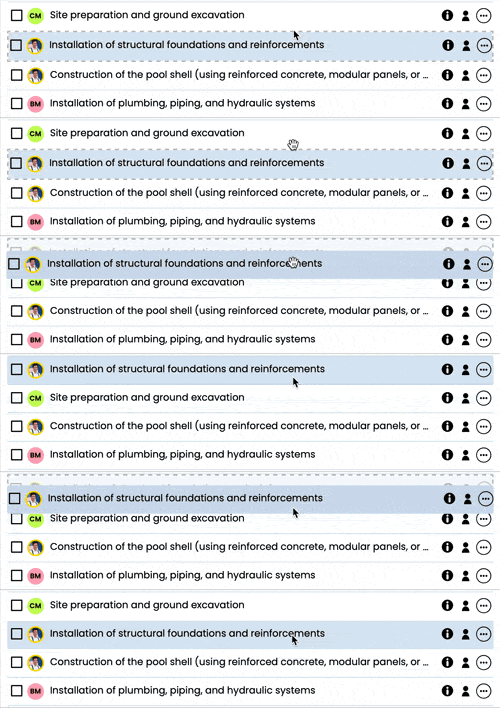
To reorganize project actions, click and hold a task, then drag it to the desired position within the card.
You can also move it to another tab by dragging it onto that tab, then choosing its exact position in the list.
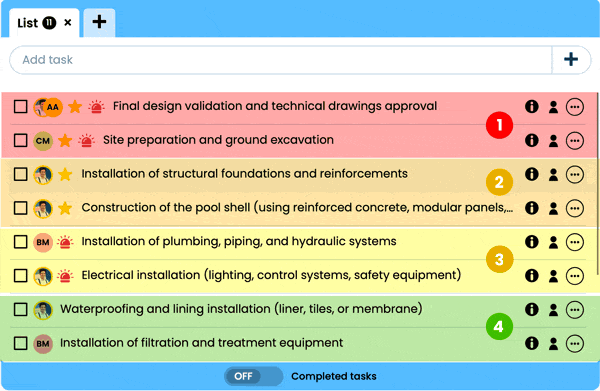
Important rule: a task can only be moved within its priority level.
A card follows a prioritization logic:
- (1) important and urgent
- (2) important
- (3) urgent
- (4) neither important nor urgent
This structure ensures consistent prioritization of project actions and helps decision-making.
Completing a task
When a project action is finished, check the box to the left of the task. It will then appear crossed out.
Completed tasks remain visible until midnight, after which they are automatically hidden to keep the view focused on remaining actions.
The card’s task counter updates immediately.
After validation, an “i” icon appears to the right of the task. It shows:
- the person who validated the task
- the date and time of validation
A completed task can be unchecked at any time to make it active again.

View completed tasks in a card
Below the task list is the completed tasks switch.
When set to “YES”, completed tasks reappear in the card. This lets you review the history of actions carried out in the project.
Completed tasks are sorted from most recent to oldest, making them easy to review during team check-ins.
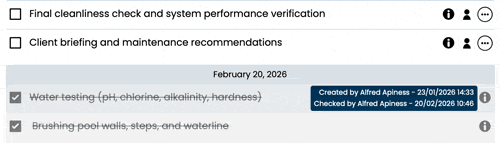
This view allows you to switch between:
- an operational project view
- a retrospective view useful for tracking progress
Assigning tasks within a card
When several people work on a project, it is recommended to assign tasks directly in the card.
You can:
- assign a task to yourself
- assign it to one or more collaborators
- leave it unassigned
To assign a task, the collaborator must be linked to the card. If needed, use the card’s action button, then “Edit” to add them to the project.
When a card is shared, an icon appears to the right of tasks. It allows you to select the relevant team members.
Once assigned, the collaborator’s avatar or icon appears to the left of the task. Hovering over it shows the responsible people.
Available task actions
Each task includes an action button represented by three dots. This menu lets you quickly adjust the task:
- set its urgency or importance
- pause it
- enable a notification
- edit or delete it
Thanks to these features, each Otilus card becomes a clear space to organize, prioritize, and track the actions of a project.