
Manage scenarios
Understanding Otilus scenarios
Let’s see how a manager can automate their organization using scenarios.
A scenario makes it possible to automatically trigger actions when a project reaches a specific stage. The result: fewer omissions, fewer manual steps, and processes that run by themselves.
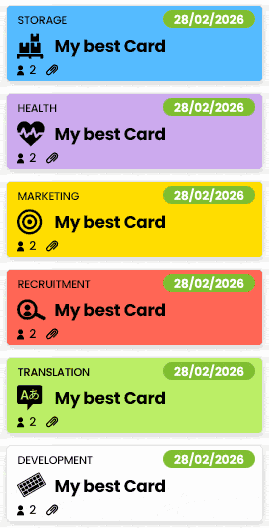
In practical terms, a scenario works according to two criteria:
- the card type, meaning the project type
- the column it arrives in
It can then trigger several automatic actions:
- Create ready-to-use tasks, and even assign them to one or more team members and prioritize them
- Move the card to another board or another stage
Think carefully before creating a scenario
Before automating anything, ask yourself one simple question: which action comes up systematically in my projects?
Example with a swimming pool contractor managing pool construction projects.
They want certain actions to be launched automatically as soon as a project moves to “In preparation”.
- Cindy, the project manager, must urgently send the quote and rent an excavator
- Bob, the technician, must contact the client and measure the site
Creating a scenario in Otilus
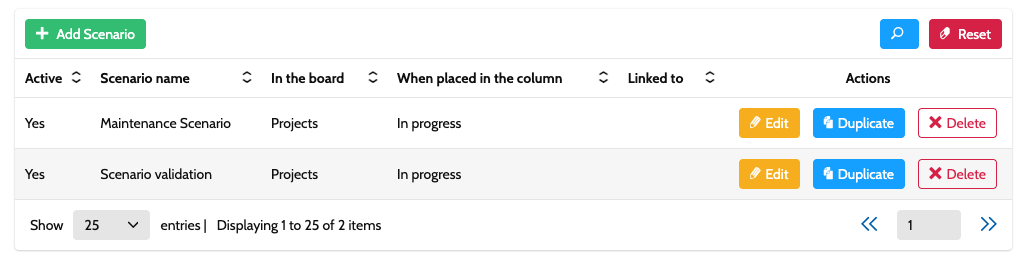
Open the Configuration area, then the Scenarios menu. You will see all your existing scenarios there.
Click Add scenario.
Give it a clear name, for example Site preparation. Then choose the relevant board, here Projects.
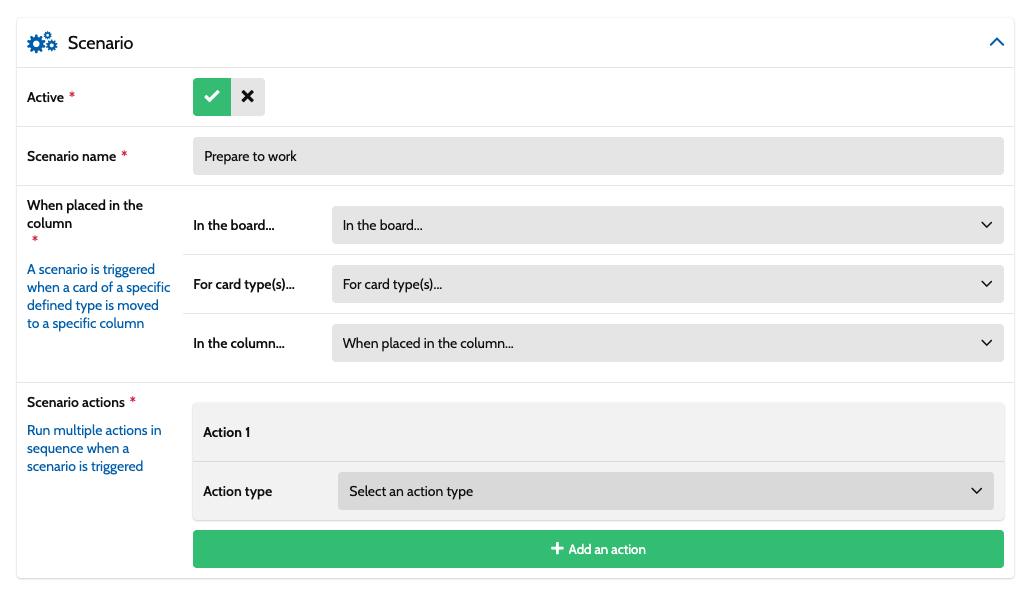
Define when the scenario is triggered
Select the relevant card types, for example:
- Custom swimming pool
- Earthworks
Then choose the trigger column… here: "In preparation".
Each time a card arrives in this column, the scenario can be launched.
Define the automatic actions
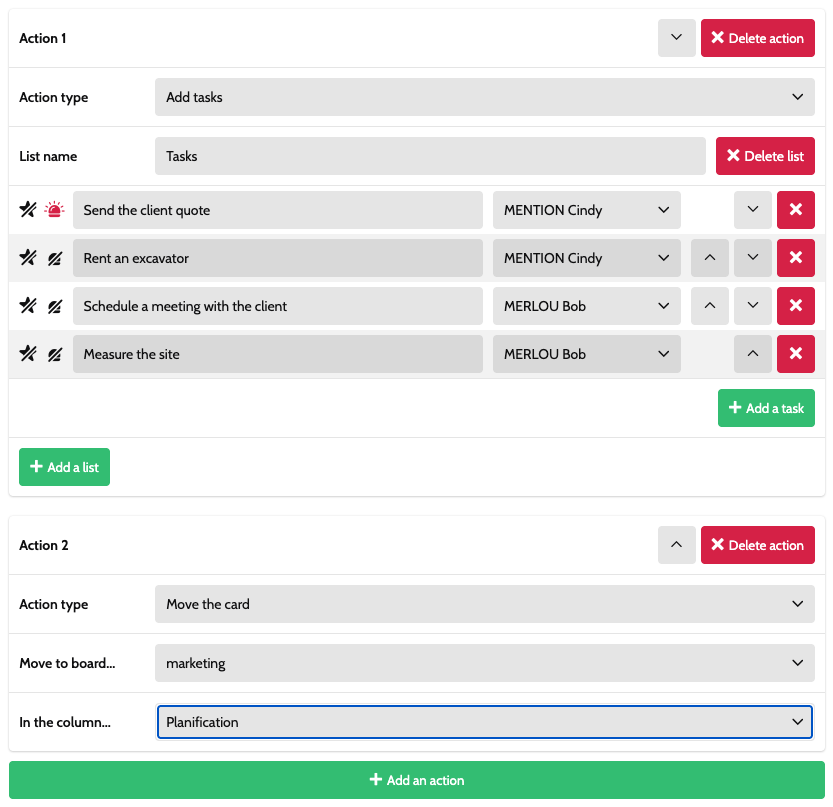
In Otilus scenarios, actions can be chained together, for example: create tasks, then send the card to another board. You must therefore configure at least a first action.
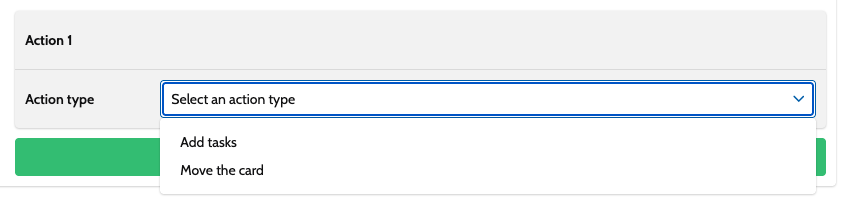
Two types of actions are possible:
- Create ready-to-use task lists
- Move the card automatically
For our example, let’s choose the option to create tasks and create a task list.
Click Add a list, then create a list for Cindy:
- Send a quote to the client, assign it to Cindy, and click the urgency symbol.
- Rent an excavator, and assign it to Cindy
Then add tasks for Bob:
- Schedule an appointment with the client, and assign it to Bob
- Measure the site, and assign it to Bob
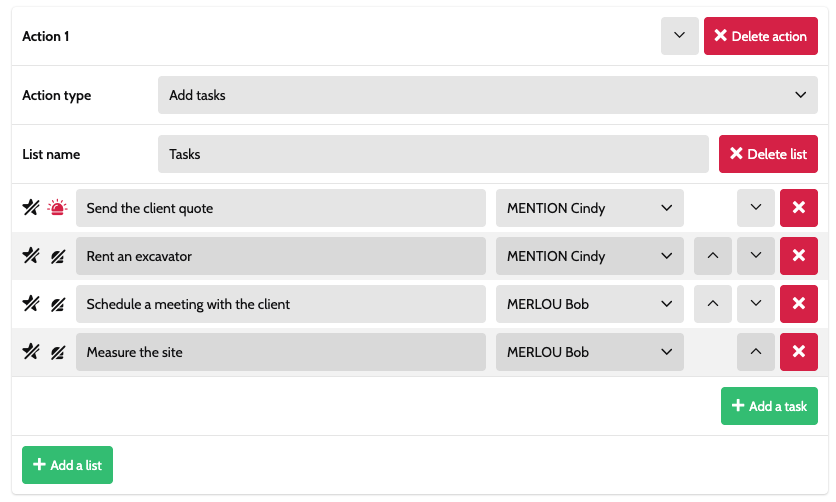
Save. Your scenario is ready.
Of course, you can also generate other lists or tabs by adding another list to the scenario, or even another action to follow. It is important to note that if you enter the name of a list that already exists in a scenario, the tasks will appear in the list mentioned and will not create a new one. You can also move the lists using the small arrows to order the tasks.
Test the scenario
Go back to your board and move a card into In preparation.
Otilus will then offer to launch the scenario.
- If you decline, nothing happens
- If you accept, all tasks are created automatically
The scenario will only be offered once per card.
Example 2: automating invoicing
Now let’s create an invoicing scenario.
Objective: when a project reaches End/Invoicing, it must automatically move to the Invoice tracking board.
Scenario settings:
- Source board: Projects
- Trigger column: End/Invoicing
- Action: move the card
- Destination: Invoice tracking board, Invoices to send column
Test it: the card disappears from the Projects board and immediately appears in Invoice tracking.
Key takeaways
Scenarios turn Otilus into a true organization engine.
- They prevent omissions
- They standardize your processes
- They save time for the whole team
The more carefully your scenarios are designed, the smoother your organization becomes.