
Manage cards
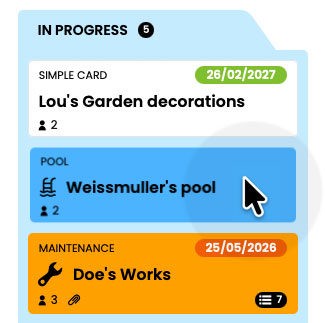
Discover how to fully leverage the power of a card in Otilus.
To open a card, a simple click is all it takes.
In this section, you will learn how to manage the content of a card and use all the features related to your projects. Remember: in Otilus, a card represents a project.
Inside, you structure your tasks, centralize your information, and manage each step with precision.
If you have previously used a Kanban-based tool, the approach may seem different at first. That’s normal.
But very quickly, you will discover that by treating each card as a true project workspace, your organization gains clarity, consistency, and efficiency.
Editing Task Tabs
In each Otilus card, tasks are organized within tabs.
These tabs are fully customizable. You can rename them, add new ones using the “+” button, or delete them by clicking the corresponding cross. This flexibility allows you to adapt your project organization to your own working method.
Tabs provide an additional level of structure within a card. They allow you, for example, to assign tasks to a specific person, divide the project into different phases, or specify the nature of the actions to be completed. As a result, each project gains clarity, consistency, and control.


Note Taking
Each card includes a dedicated note-taking area to centralize information related to your project, your clients, or any other important element. Your notes are automatically and regularly saved while you write, allowing you to work in real time with complete peace of mind.
In the event of disconnection, Otilus immediately alerts you to prevent any data loss.

Adding Documents
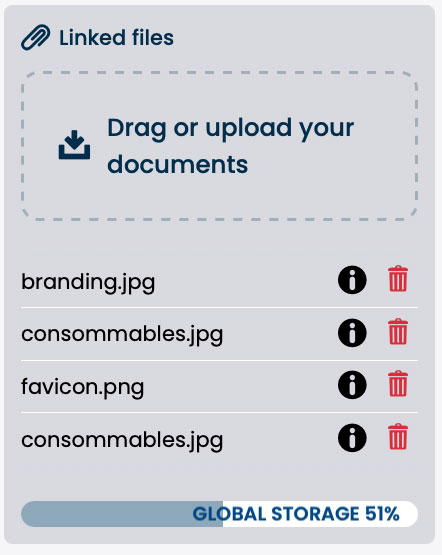
It is often necessary to add documents useful to a project. Without replacing a full document management solution, Otilus allows you to easily integrate lightweight files such as diagrams, quotes, or photos directly into the project card. From the mobile version, you can also take photos and instantly add them to your project. A drop zone lets you select your files (PDFs, images, text documents, spreadsheets, etc.) and drag and drop them into the upload area on the right side of the window.
Each file uses part of your storage space, visible through a dedicated storage bar. Deleting a file — or the card itself — immediately frees the corresponding space. By clicking on a document name, you can preview it directly (images and PDFs).
Accepted formats are: doc, docx, pages, txt, rtf, ppt, pptx, 3ds, keynote, odt, odp, ods, numbers, ics, xls, xlsx, csv, pdf, jpg, jpeg, heic, gif, svg, eps, bmp, png, rar, zip, 7z, cad, dwg and dxf.
Card Action Button
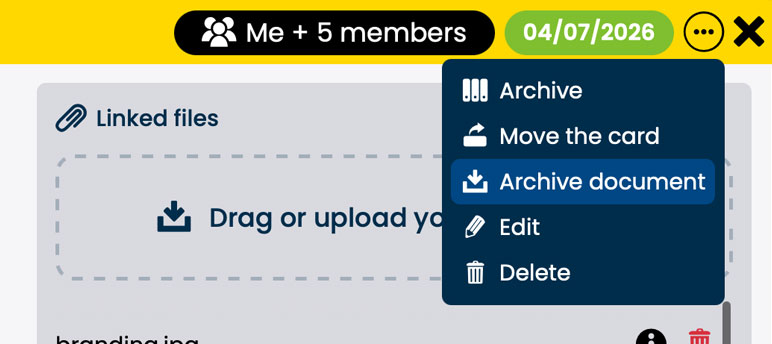
The card action button (…), located at the top of the window, allows you to delete, move, or archive a card. The “Edit” and “Delete” buttons give you access to full project editing or permanent deletion.
Deletion and Archiving
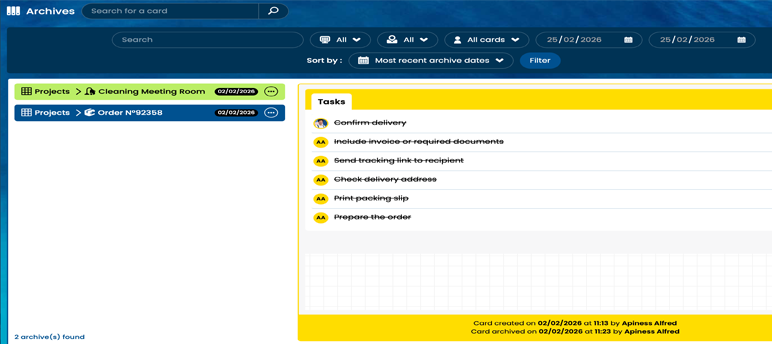
Deleting a card is permanent. It is therefore recommended to use archiving if you wish to keep a record of the project. An archived card is kept for five years before permanent deletion. It remains accessible in the archive space throughout this period.
To learn more, see the “Archiving cards” section of the documentation.
Editing a Card
The “Edit” button takes you back to the card creation form to adjust the project settings. You can modify its name, type, assigned team, as well as its phases and due dates.
Archive documents
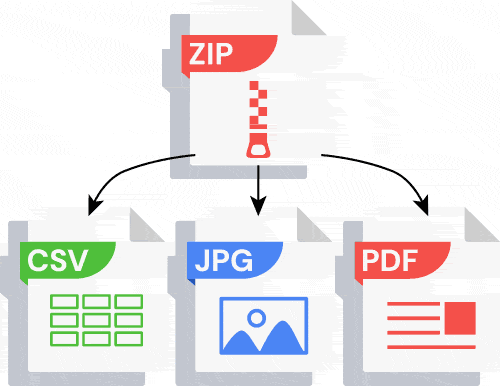
The archive document is an exportable spreadsheet document, downloadable at any time. It provides the complete history of the card: task creation, modifications, executions (who did what and when), organization within tabs, and status evolution : all presented in chronological order
This log is a true traceability tool. It allows you to maintain a clear overview of the project’s progress and access a usable history at any time.
If documents are attached to the card, the task log export will be generated in “ZIP” format, including all attached files in a single archive.
Moving a Card
The card move function allows you to transfer a project to a column in another board.
For example, a completed card in a production board can be moved directly to a billing follow-up board. This mechanism facilitates project flow between different company departments and ensures a natural continuity in process handling. Otilus supports the project throughout its lifecycle, from one department to another, without any loss of information.
These features make Otilus flexible and accessible across all your devices, wherever you are. Take advantage of this simplicity to manage your projects on the go and maintain a clear view of your actions at all times. Let’s now move on to task management.