
Interface Overview
From your very first login to Otilus, you are taken to an initial board.
A board is a project management space made up of several colored columns, each corresponding to a specific project phase.
This visual structure allows you to understand the status of your projects at a glance.
Columns can be created, edited, or rearranged by the person who has configuration permissions within your team: the manager.

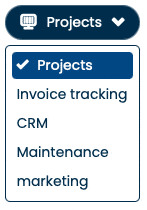
Each board has its own name, making it easy to identify your different workspaces.

You can switch between boards at any time using the board selector located in the top-right corner of the interface.
The board you are viewing remains active until your next login.
In practice, if you leave Otilus while on the “Projects” board, you will be automatically redirected to that same board on your next visit.
Managing Cards
Within each board, you work with cards. Cards represent your projects and can have different colors and types, depending on the configuration defined by your team’s manager.
Example: a “Maintenance” board
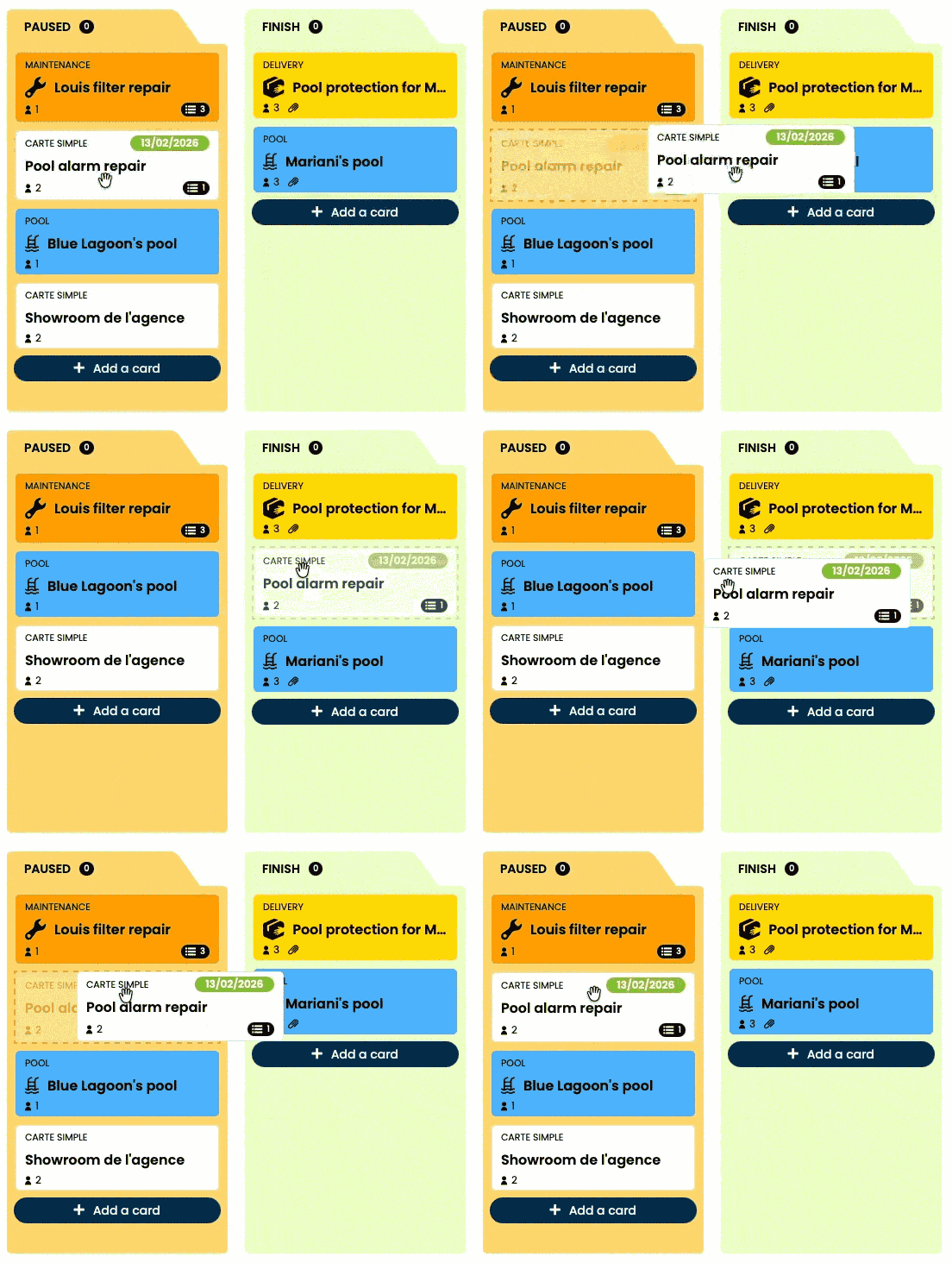
In Otilus, a project’s status is directly linked to the column in which its card is placed. A card’s position within a column reflects the project’s actual progress.
The card “Pool alarm repair” is located in the “On Hold” column.
- Ready to take action?
Simply move the card to the “Done” column to mark the project as completed.
- Starting from another column:
You can move a card directly to any column, without being required to pass through each intermediate stage.
Team members can be notified of these column changes through notifications.
The notification system is detailed in a separate documentation.
Card Analysis
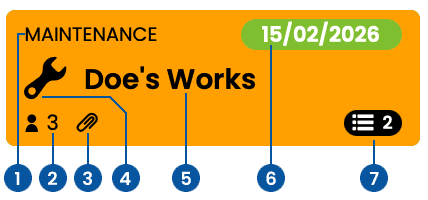
- Card Type Title:
Displays the full name of the task type, consistent with the card’s color and icon. This makes it easy to immediately understand the nature of the project. - Dedicated Team:
People assigned to the project.
They can follow its progress and collaborate on it. - Attached Document:
This icon indicates that the card contains one or more associated documents (images, PDFs, files, etc.). - Card Type (Color and Icon):
The card type combines a color and an icon to quickly identify the nature of the project (in this example, the orange color and the wrench icon are linked to the “Maintenance” type). - Title:
Allows you to immediately identify the project, the client, or the work to be carried out. - Due Date / Phase (optional):
Indicates the deadline date for the project or the current work phase.
Green: on track, Orange: due in less than 3 days, Red: overdue. - Remaining Tasks Count:
This indicator displays the number of tasks remaining to complete the current project phase.
Standard card:
Managing Columns
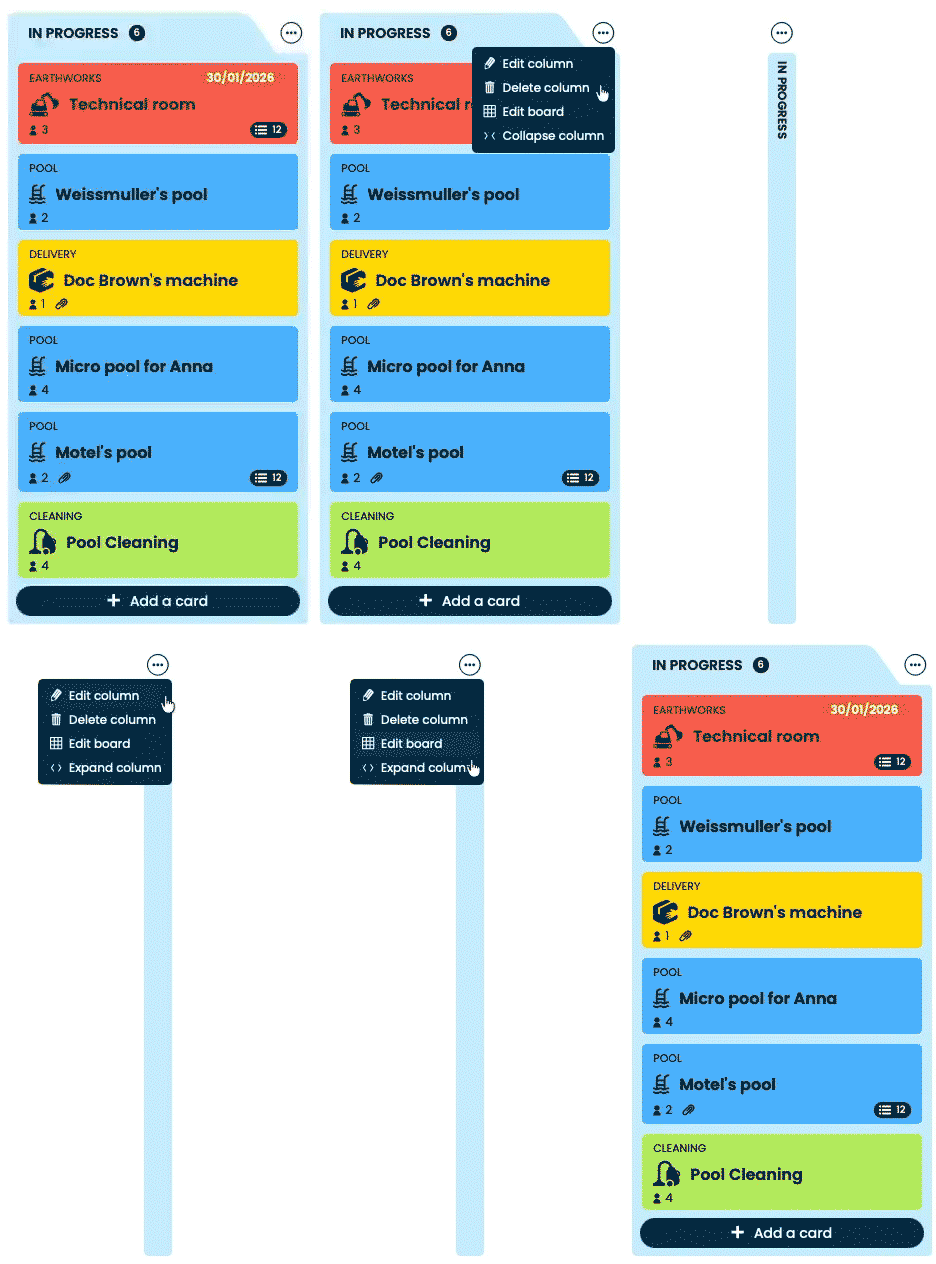
Each column includes an action button (a circular icon containing “…”).
This button provides access to the options related to the column.
FOR managers
If you are a account manager, you can :
- edit the column name,
- adjust its color,
- manage the number of columns,
- access the configuration area for more advanced settings.
For all users
Whether you are a user or a manager, you cancollapse a column at any time when it takes up too much screen space.
Example :
A “Work on hold” column contains many cards but does not need to be consulted on a daily basis. Simply select the “Collapse column” option to reduce it to a minimal width.
Display Memory
Otilus remembers this choice.
The column will remain collapsed during your next logins until you choose to display it again.
Card Search

Use the Otilus search engine, or the shortcuts Ctrl + F (PC) / ⌘ + F (Mac), to quickly find a specific card or filter a set of cards.
You can enter:
- a full word,
- the beginning of a word,
- or simply a sequence of consecutive letters.
Otilus then filters cards by their title.

Example:
By searching for “ach”, Otilus will display all cards whose name contains this sequence of letters,
such as “Build a TimeMachine” or “Call the Coach”.
Boards and Filters
The “Boards” field
The “Boards” field allows you to instantly switch from one board to another (examples: Production, Billing, Sales…).
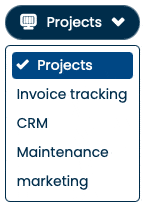
Each board corresponds to a different department, activity, or work context within your company. Each board can be configured independently:
- specific team members,
- board-specific cards and card types,
- automation scenario rules tailored to your needs.
Filters Area

The “Filters” area, located in the top-right part of the Otilus interface, provides access to various fields designed to filter the cards displayed in the current board:
Filter by Phase Due Date
Color-coded checkboxes allow you to display only:
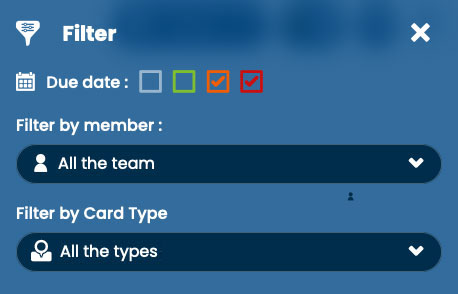
overdue projects (red);
upcoming projects, whose phase ends within 3 days (orange);
on-track projects (green);
projects with no defined due date (white).
Filter by Team Member
You can filter the displayed cards based on their assignment:
- cards assigned to all team members;
- cards assigned to a specific team member.
This feature is particularly useful for focusing only on the projects that concern you. Since filters are remembered, your selected configuration is automatically reapplied during your next logins to Otilus.
For example, if you choose to display only the cards assigned to you, this filter will remain active during your next visit.
Filter by Card Type
This filter displays only cards matching a specific type, helping you focus on a particular category of cards.
With Otilus, visualize, organize, and manage your projects at a glance.