
Account settings

To get the most out of Otilus, start by configuring your account. With just a few simple settings, you can adapt the tool to your way of working: relevant notifications, clear visual identity, and access from the device of your choice.
Personalization settings
Open the My account menu to adjust your profile and user experience. Here are the main settings available:
1. My information
The My information tab gathers the essential elements of your profile. You can:
- Edit your first and last name: keep your information up to date to make collaboration easier.
- Change your email and password: essential for keeping your account secure.
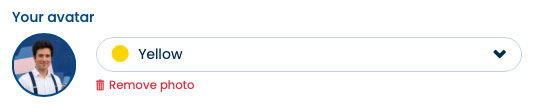
- Customize your avatar: your visual identity appears wherever you interact in Otilus.
- Select your language: choose between the French or English interface.
- Choose the date format (default: DD/MM/YYYY).
- Choose your font: select from fonts designed for dyslexia (Lexend, OpenDyslexic, etc.) or for visual impairments (Atkinson Hyperlegible).
- Show the startup help: enable or hide the help window depending on your needs.
- Show the click animation on a card: enable or hide the animated circle on the card when clicked.
- Enable vibration on tap for Android: this menu is only displayed on Android and provides haptic feedback when tapping.
Avatar customization options:
By default, Otilus automatically generates an avatar with a color and your initials. This avatar appears whenever you are assigned to a card or a task. You can of course customize it so your team can recognize you instantly.
- Color selection: choose one of the available colors to quickly identify your activity in projects.
- Custom photo or image: replace your initials with a photo or visual. On mobile, you can even take a picture directly using your camera.
2. My notifications
The My notifications tab lets you decide exactly what deserves your attention. Enable only the alerts that matter to stay informed without overload.
- Configure your notifications: use the switches to enable or disable each type of alert.
Examples of available notifications:
- When a new card is assigned to you.
- When one of your cards moves to another column.
- When a Flash task is assigned to you.
- When a phase is approaching its deadline (notification sent every morning at 8:00 AM during the 3 days before the deadline).
3. Choosing your platform
Otilus adapts to your work environment. Simply choose how you prefer to use it:
- From your browser: instant access from any computer, no installation required.
- Desktop application: a dedicated workspace for focused work without distractions.
- Mobile version: follow your projects and tasks anywhere, with an interface optimized for touch screens
Why personalize your account?
A configured account means a clearer, more comfortable and more efficient tool. With just a few adjustments, you make Otilus easier to read, better suited to your workflow, and simpler to use every day.
Take a minute to personalize your account — your organization will thank you.